
Mouse Jiggler guide: install and use it step by step
From download to daily use, in eight short steps.
Download Mouse Jiggler
Open the download page and choose a version:
- Installer (recommended): adds a Start menu entry, optional desktop icon and an uninstaller.
- Portable: a single executable, nothing to install, no .NET required.
- Portable light: very small, but requires the .NET 8 Desktop Runtime.
Install or launch
Run MouseJiggler-1.2.0-setup.exe. It installs for your user account only, in %LOCALAPPDATA%\Programs\Mouse Jiggler, without administrator rights. You can tick “Start with Windows” and “Desktop icon”.
The executable is not code-signed, so Windows SmartScreen may show “Windows protected your PC”. Click More info, then Run anyway. You can check the file against the published SHA-256 fingerprints first.
With the portable version, just place the .exe where you want and double-click it.
Turn jiggling on
Click the big round button. It turns blue and the status changes to Active, with the countdown to the next movement.
You can also press Ctrl+Alt+J from anywhere in Windows.
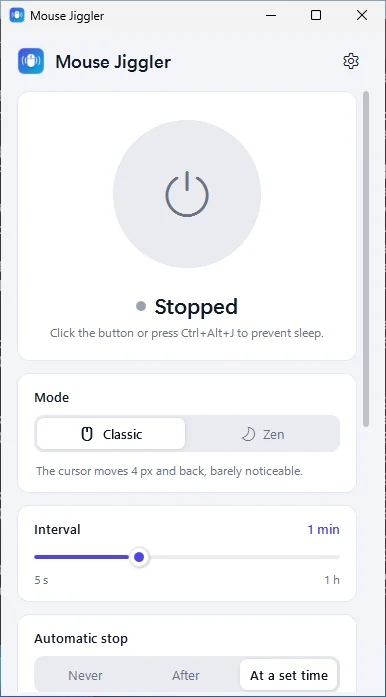
Choose the mode and interval
- Classic: the cursor moves 4 px and comes back (adjustable 1–25 px in the settings).
- Zen: activity without any visible movement.
Set the interval with the slider (5 s to 1 h). Windows usually dims the screen after a few minutes, so an interval of 30 s to 2 min works in most cases.
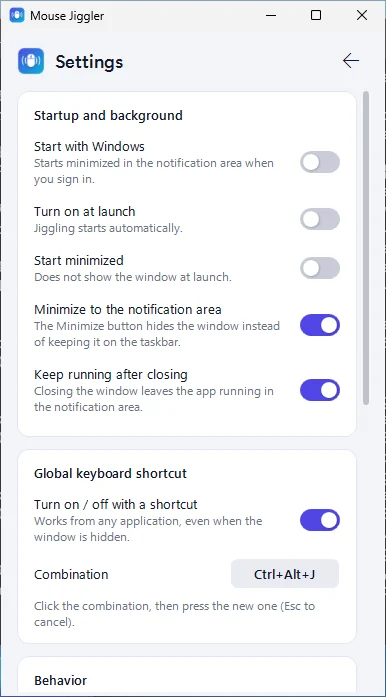
Configure the settings
Click the gear icon (or Ctrl+,) to open the settings:
- Start with Windows, Turn on at launch, Start minimised.
- Minimise to the notification area and Keep running after closing (both on by default).
- Keep the screen on and Stay out of my way (both on by default).
- Classic distance, global shortcut, language and theme.
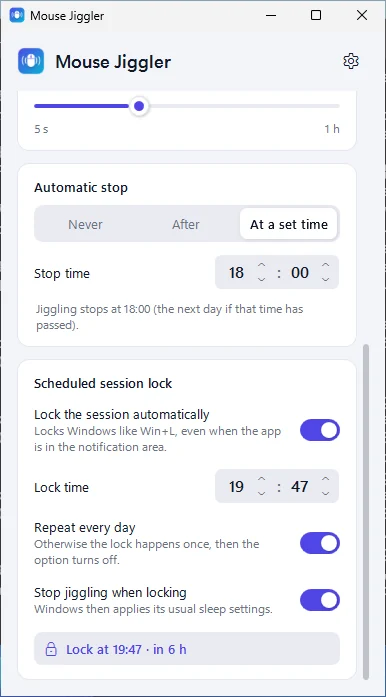
Plan an automatic stop or a lock
Automatic stop: choose “After” and a duration, or “At a set time” and a time. Type the time directly (1830 gives 18:30), use the arrows, the ↑ ↓ keys or the mouse wheel.
Scheduled lock: turn on “Lock the session automatically” and choose the time. A notification warns you 1 minute before, then Windows locks like Win+L.
Turn it off or quit
To stop jiggling: click the round button again, press Ctrl+Alt+J, or right-click the tray icon and choose Stop jiggling. From a script: MouseJiggler.exe --stop.
Closing the window does not quit the app (it stays in the notification area). To close it completely, right-click the tray icon and choose Quit.
Update or uninstall
Update: run the new installer; it closes the old version and keeps your preferences.
Uninstall: Settings → Apps → Mouse Jiggler → Uninstall. For the portable version, turn off “Start with Windows”, quit the app and delete the executable and the %APPDATA%\MouseJiggler folder.
Keep your PC awake in one click
Free and light. Install it in seconds, without administrator rights.
Download for Windows Free · v1.2.0 · 59 MBWindows 10 (1809 or later) and Windows 11, 64-bit. Unsigned executable: Windows SmartScreen may ask you to confirm.