
Mouse Jiggler features
Everything Mouse Jiggler 1.2.0 can do, with how it works and what it does not do.
Two jiggle modes: Classic and Zen
Classic moves the cursor diagonally by a few pixels, then 40 milliseconds later moves it back to exactly the same place. The distance is 4 px by default and can be set from 1 to 25 px in the settings.
Zen sends a mouse movement of zero distance. Windows counts it as user input and resets its idle timer, but the cursor does not move. It is the mode to use if you do not want to see anything happen on screen.
- Both modes use the standard Windows
SendInputfunction. - They reset the idle counter that drives the screen saver, sleep, automatic lock and the “away” status of many apps.
- Switch mode at any time from the main window or the tray menu.
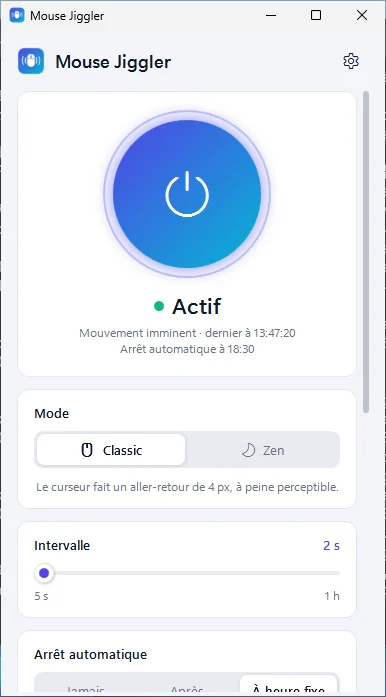
Interval from 5 seconds to 1 hour
Choose how often activity is simulated with the slider, from 5 seconds to 1 hour. The main window shows the countdown to the next movement and the time of the last one.
From the command line, --interval accepts any value from 2 to 3,600 seconds.
- Stays out of your way (on by default): if you used the mouse or keyboard during the interval, nothing is simulated.
- Keep the screen on (on by default): while jiggling, a Windows power request also prevents the display from turning off and the system from sleeping. You can see it with
powercfg /requests.
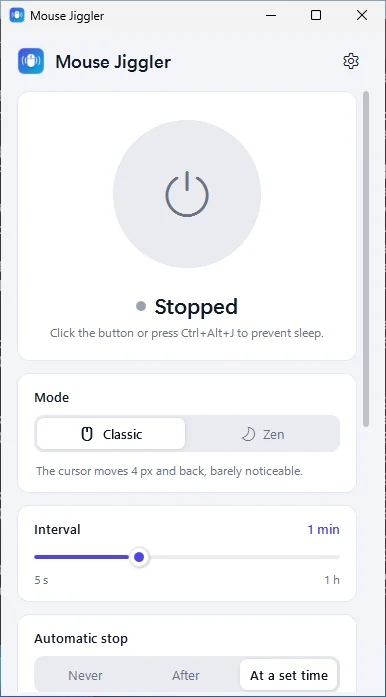
Automatic stop
Mouse Jiggler can stop on its own: never, after a duration (15 minutes to 12 hours) or at a set time (for example 18:00; the next day if that time has already passed).
The planned stop time is shown under the status and in the tray tooltip, and a notification tells you when jiggling stops.
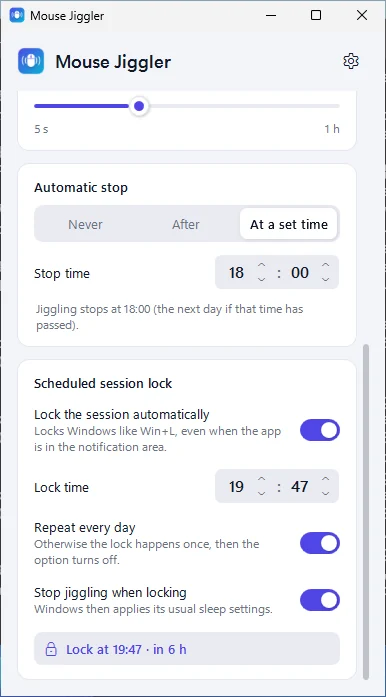
Scheduled session lock
Lock Windows automatically at a precise time, once or every day. The lock uses Windows’ own mechanism (LockWorkStation, the same as Win+L): your apps stay open and you unlock as usual.
- The card shows the planned time and the time remaining, for example “Lock at 18:00 · in 2 h 15 min”.
- A notification warns you 1 minute before.
- “Repeat every day” is on by default; otherwise the lock happens once and the option turns off.
- “Stop jiggling when locking” (default) lets Windows apply its usual sleep settings afterwards.
- Works with the window closed. The same time never locks twice; if the PC was asleep, the lock happens on wake-up if it is less than 5 minutes late, otherwise it moves to the next day.
Notification area and global shortcut
Closing or minimising the window keeps Mouse Jiggler running in the notification area. Left-click the icon to open it; right-click to start or stop, change mode, turn the scheduled lock on or off, or quit. The icon is coloured when jiggling is active and grey otherwise.
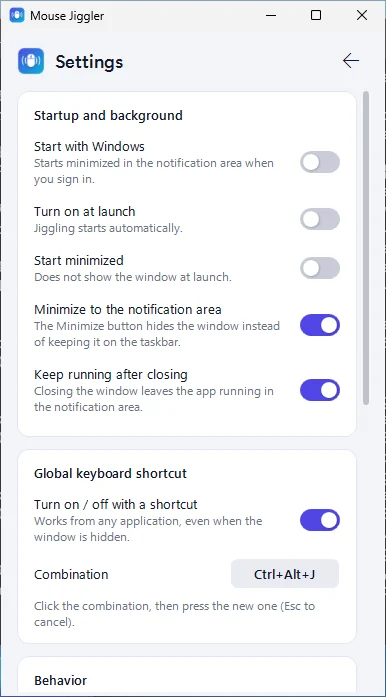
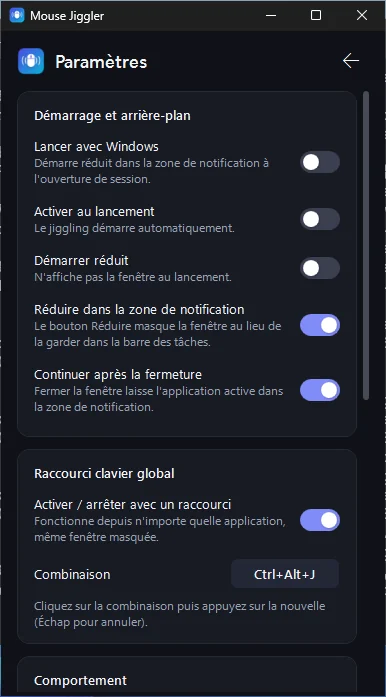
The global shortcut Ctrl+Alt+J turns jiggling on or off from any application, even with the window hidden. You can change it in the settings; the combination must include Ctrl, Alt or Win, and the app tells you if another program already uses it.
- Option to start with Windows (current user only, no administrator rights), minimised.
- Options to turn on at launch and to start minimised.
- In the window: Ctrl+Space starts or stops, Ctrl+, opens the settings.
Five languages, light and dark theme
The interface is available in English, French, Arabic (fully right-to-left), Simplified Chinese and Spanish. “Automatic” follows the Windows language. Changing language is immediate, including the tray menu and notifications.
The theme can follow Windows automatically (including live changes) or be forced to light or dark; the title bar matches.
Light, private, no administrator rights
One timer ticking once per second, no continuous animation: under 0.5 % CPU and about 20 to 40 MB of memory once in the notification area.
The app does not collect any data and does not connect to the internet. Your preferences are saved in %APPDATA%\MouseJiggler\settings.json. Only one instance runs at a time.
Command line
Useful for shortcuts, scripts or the Windows Task Scheduler. If Mouse Jiggler is already running, --jiggle, --stop and --quit are passed to the running instance.
| Option | Effect |
|---|---|
-j, --jiggle | Start jiggling immediately |
-m, --minimized | Start minimised in the notification area |
-z, --zen | Use Zen mode |
-c, --classic | Use Classic mode |
-s, --interval <sec> | Interval in seconds (2 to 3,600) |
-d, --duration <min> | Stop automatically after N minutes (1 to 1,440) |
--stop | Stop jiggling in the running instance |
--quit | Close the running instance |
Example: start minimised in Zen mode, every 60 seconds, for 2 hours.
MouseJiggler.exe --jiggle --minimized --zen --interval 60 --duration 120What Mouse Jiggler cannot do
- Windows refuses simulated input while the session is locked, or while an administrator window or the UAC prompt is in the foreground. The app shows a warning and tries again at the next interval. It deliberately never runs as administrator.
- A company policy that locks the screen after a fixed time regardless of activity cannot be bypassed by simulated mouse input.
- Some applications detect presence with their own rules (for example real cursor movement). If one shows you as “away” in Zen mode, use Classic mode with a small distance.
- Windows only (10 version 1809 or later, 11), 64-bit. The executables are not code-signed, so SmartScreen may ask for confirmation.
Keep your PC awake in one click
Free and light. Install it in seconds, without administrator rights.
Download for Windows Free · v1.2.0 · 59 MBWindows 10 (1809 or later) and Windows 11, 64-bit. Unsigned executable: Windows SmartScreen may ask you to confirm.