
Free · No ads · Windows 10 & 11
Mouse Jiggler for Windows
Your PC stays awake. You stay in control.
Mouse Jiggler simulates a tiny mouse movement at regular intervals so Windows does not go to sleep, turn off the screen or lock your session. One click to start, one click to stop.
- No administrator rights
- No data collected
- No ads
What is Mouse Jiggler?
Mouse Jiggler is a small Windows utility that keeps your computer awake. When you are reading a long document, watching a presentation, running a download or monitoring a dashboard without touching the mouse, Windows thinks you are away: the screen dims, the PC goes to sleep or the session locks.
Mouse Jiggler sends a simulated mouse event every few seconds or minutes. Windows registers activity, so it does not sleep and the screen stays on. It lives in the notification area, uses almost no resources and stops whenever you want.
Everything you need, nothing you don’t
Every feature below exists in the current version, 1.2.0.
-
Classic mode
The cursor moves a few pixels and comes straight back (4 px by default, adjustable from 1 to 25 px).
-
Zen mode
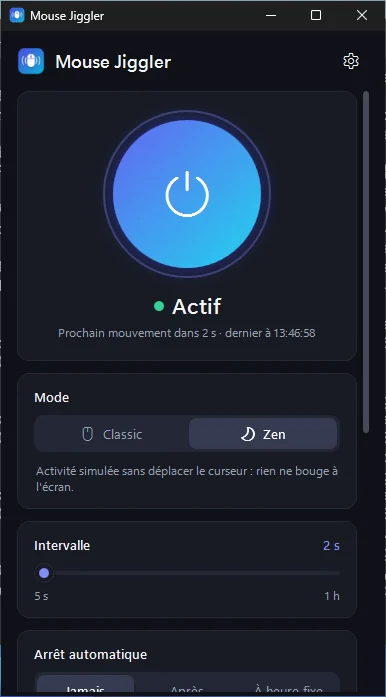
A zero-distance mouse movement: Windows registers activity but the cursor does not move at all.
-
Adjustable interval
From 5 seconds to 1 hour with the slider, or any value from 2 to 3,600 s on the command line.
-
Automatic stop
Stop after a duration (15 min to 12 h) or at a set time, with a notification.
-
Scheduled session lock
Locks Windows at a chosen time, once or every day, like Win+L. Warning 1 minute before.
-
Global shortcut
Ctrl+Alt+J (customisable) turns jiggling on or off from any application.
-
Notification area
Runs discreetly in the system tray, with a menu to start, stop, change mode or quit.
-
Stays out of your way
Nothing is simulated while you are actually using the mouse or keyboard.
-
5 languages, light & dark
English, French, Arabic (right-to-left), Chinese and Spanish. Automatic, light or dark theme.
How it works
Three steps, about a minute.
-
Download and install
Run the installer (no administrator rights needed) or use the portable version.
-
Choose a mode and an interval
Classic moves the cursor slightly, Zen does not move it at all. 1 minute is a good start.
-
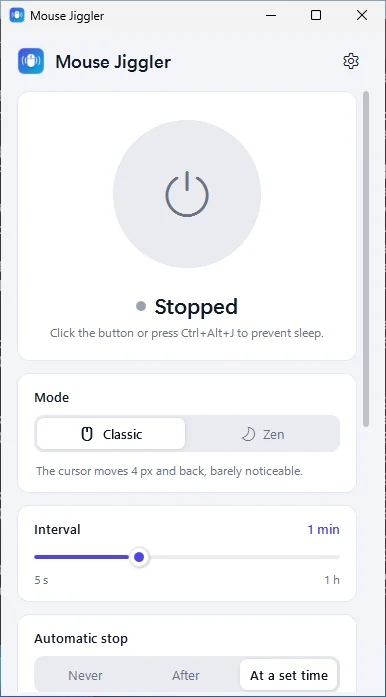
Click the round button
It turns blue: you are protected. Close the window, the app keeps running in the notification area.
Classic: a movement you barely see
The cursor moves diagonally by a few pixels, then 40 ms later returns exactly to where it was.
Zen: activity without movement
A relative mouse movement of (0, 0) is sent through Windows’ input system. It resets the idle timer, but nothing moves on screen.
When is a mouse jiggler useful?
Any time your computer should stay awake while you are not touching it.
-
Presentations and reading
Long documents, slides or a video call shared on screen without the display going dark.
-
Long tasks
Downloads, uploads, backups, renders or installations that stop when the PC sleeps.
-
Dashboards and monitoring
A status screen, a queue or logs that must stay visible.
-
Remote sessions
When run inside a remote desktop session, it keeps that session active.
-
Short breaks
Avoid unlocking your PC after every coffee, then let the scheduled lock secure it at the end of the day.
-
Locked-down PCs
When you cannot change the power settings, it needs no administrator rights.
Mouse Jiggler cannot bypass a policy that forces the screen to lock after a fixed time regardless of activity, and it should not be used to break your employer’s rules. When you step away, lock your PC (Win+L) or use the scheduled lock.
Why choose this Mouse Jiggler?
- FreeNo ads, no account, no paid version.
- PrivateThe app collects nothing and never connects to the internet. Settings stay in a local file.
- LightOne timer ticking once per second, under 0.5 % CPU, about 20 to 40 MB of memory in the notification area.
- No administrator rightsInstalls for the current user only, and works on PCs where you cannot change power settings.
- Under controlAutomatic stop, scheduled lock, shortcut and a clear status: you always know what is happening.
Screenshots
Click an image to enlarge it.
-
Main window: one button to start or stop. -
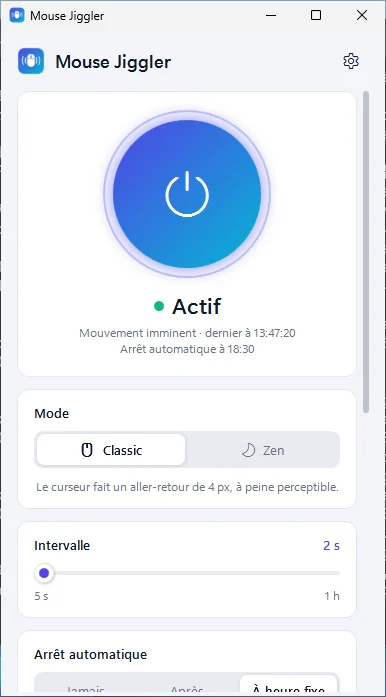
Classic mode active, with a scheduled automatic stop. -
Zen mode: activity is simulated, the cursor does not move. -
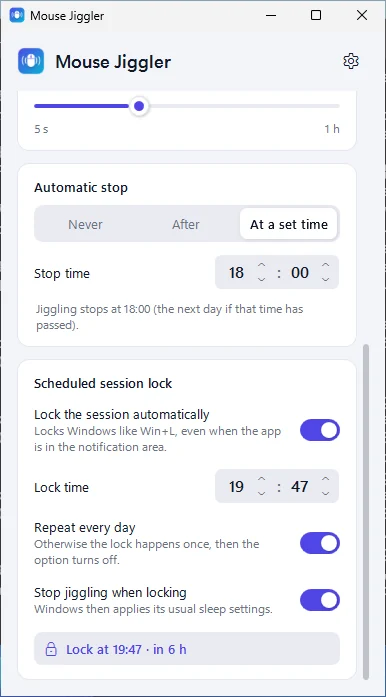
Automatic stop and scheduled session lock. -
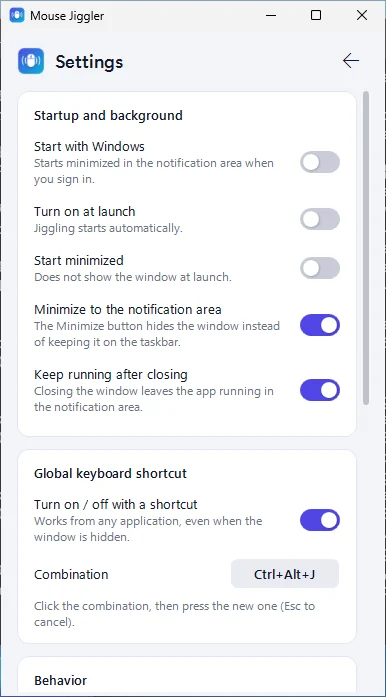
Settings: startup, notification area, keyboard shortcut. -
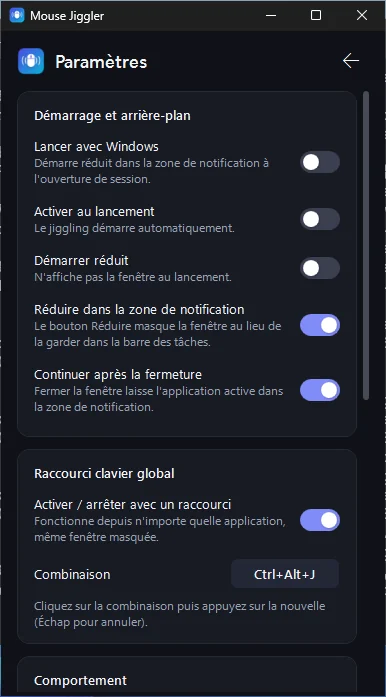
Dark theme (automatic, light or dark).
How does it compare?
PowerToys Awake, Caffeine, Move Mouse, the original Mouse Jiggler or a USB jiggler: each tool has its strengths. Our comparison explains honestly when to choose which.
Read the comparisonFrequently asked questions
What is a mouse jiggler?
A mouse jiggler is a tool that simulates small mouse movements so the computer thinks someone is using it. It prevents sleep, the screen from turning off and the session from locking automatically. Mouse Jiggler does this in software, without any hardware.
Is Mouse Jiggler free?
Yes, completely: no ads, no account, no paid version.
Does it work on Windows 11?
Yes. Mouse Jiggler works on Windows 11 and Windows 10 (version 1809 or later), 64-bit. It has been tested automatically on Windows 10- and Windows 11-based systems.
Do I need administrator rights?
No. The installer installs for the current user only, and the portable versions run without installation. That is why it works on many PCs where you cannot change the power settings.
Does the cursor move?
In Classic mode, the cursor moves a few pixels (4 by default) and immediately comes back. In Zen mode, the cursor does not move at all: a zero-distance movement is sent, which Windows still counts as activity.
Keep your PC awake in one click
Free and light. Install it in seconds, without administrator rights.
Download for Windows Free · v1.2.0 · 59 MBWindows 10 (1809 or later) and Windows 11, 64-bit. Unsigned executable: Windows SmartScreen may ask you to confirm.